Written By: Scott de Jong
Shareable Links in AirHub
1.1 Drone Operations Center - Livestream Sharing
Before you start
Shareable links in AirHub make it possible to grant controlled, temporary access to a live session. These links are view only and never allow remote control or operational changes. They can be protected with passwords, IP address restrictions, and automatic expiration settings. Shareable links are ideal for external viewers such as clients, emergency services, or command staff who need situational awareness without full platform access.
1.1 What Shareable Links Do
Shareable links allow external viewers to access:
Live video feeds
The optional live map
Basic situational information from the ongoing session
The viewer does not need an AirHub account. Access is browser based and read only.
Shareable links are created from within a Custom Session in our Live Operations tab. Once generated, they can be shared through any communication channel you choose.
1.2 Creating a Shareable Link
You can create a shareable link directly from the session header.
To create a new link:
Open the Custom Session.
Click the link icon in the session header.
Click New Link.
Configure the link settings.
Click Create.
Once saved, the link becomes active immediately unless an expiration date restricts access.
1.3 Link Configuration Options
When creating a shareable link, you can define multiple controls to manage security and access.
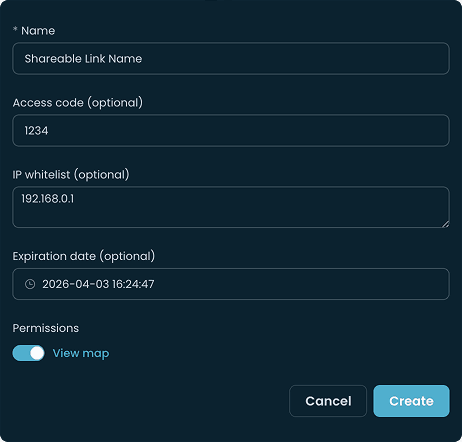
Name;
Gives the link a clear label to identify its purpose.
Examples:
Police Command Post
Client Live View
Press
Access Code;
Adds an optional PIN that must be entered before access is granted.
Example: JmGpla8374
IP Whitelist;
Restricts access to specific IP addresses or ranges.
This ensures the link can only be opened from approved networks.
Example: 203.0.113.10
Expiration Date;
Sets a date and time when the link automatically becomes inactive.
This prevents long term or unintended access.
Example: 2025 08 27 at 17:00
Permission to View Map;
Determines whether viewers can see the live map in addition to the video stream.
If disabled, viewers will only see the video feeds and session information.
1.4 Managing Existing Shareable Links
After creating one or more links, they appear in the shareable links list within the session interface.
From this list, you can:
View active links
Edit link settings
Disable or delete links
Check access parameters such as expiration time
Changes apply immediately and do not require regenerating the link unless you choose to delete it.
1.5 Security and Best Practices
Shareable links are secure by design, but additional steps help ensure safe use in operational environments.
Use access codes for all external stakeholders.
Enable IP whitelisting for sensitive operations.
Set expiration dates so links close automatically after an event.
Only enable map access when situational awareness is required.
Delete links when no longer needed.
These controls ensure external viewers only receive the information intended for them without exposing operational functionality or internal data.
Related articles